# Auto Attendant / IVR / Office Hours - Call Routing
You probably don't want calls to ring your mobile in the middle of the night. Thank God for the office hours function then. Here you can configure when your business is open and when you are on break and then route your calls differently when your office is closed. To make all this work you need to not only configure your office hours but you must also ensure the calls are routed to this inbuilt **“office hours”** IVR menu.
## Step 1: Configure Office hours
To configure your office hours:
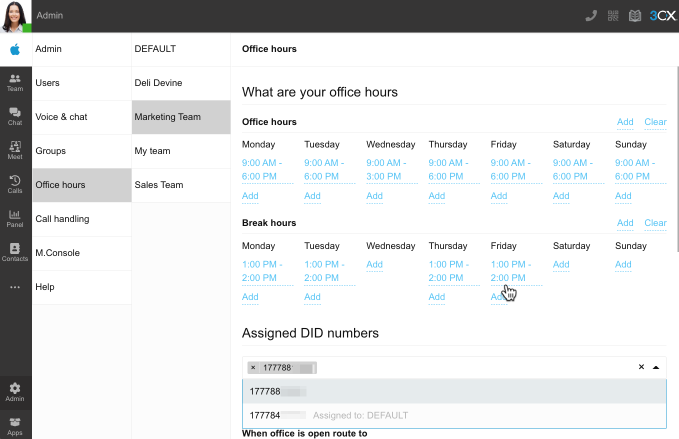
1. From the 3CX Web Client go the **“Admin”** section and then to **“Office hours”**:
1. 3CX FREE/SMB - Your office hours will apply to the whole team.
2. Dedicated - You will see an extra column listing the groups you have created, with at least one group call **“Default”**. The office hours will be applied to the members of that group only.
2. Click on the days and specify your opening hours.
3. Add any breaks you might take.
4. Use the **“Add”** and **“Clear”** button for each section to add or remove times for every day of the week in one single bulk action.
5. If this group is in a different time zone, you can set the time zone at the bottom of the page.
6. If you have multiple groups then repeat this process for each group.
## Step 2: Assign a DID and route calls
After you have configured your office hours you have to route all your calls to an assigned number and then select what the system should do based on the time the call is received:
1. In the **“Assigned DID numbers”** section, select a DID that has not been assigned. If you have just one number, then select this number.
2. Now select a destination for calls received during office hours, out of office hours and break:
1. Another **“User”**
2. Someone’s **“Voicemail box”**
3. **“Ring Group”**
4. **“Digital receptionist”**
5. **“Queue”**.
## Step 3: Record an announcement
How about welcoming callers while they wait for you to take a call? Pretty cool right? To configure this:
1. Toggle the **“Play announcement”** slider on.
2. Record what you want to tell your callers. Something original like ‘Thank you for calling Company XYZ’. To record your greeting:
1. Click the **“Record”** button.
2. Enter your desired file name and click the **“Record”** button.
3. The popup will show your recording time. When finished, click the **“Stop”** button.
4. You can now listen to your greeting, re-record it or click the upload button to save.
5. Your recording will now be shown in the drop-down box.
3. If you already have an audio file, you can upload your announcement as a Mono, 8khz, 16bit WAV file. If you have a music file that does not fit the required audio format, you can use our [audio convertor tool](https://audioconverter.3cx.com/audio-converter).
4. Repeat this with a different announcement for when you are on break or when your office is closed.
If you do not see the **“Record”** button, ensure your microphone is properly configured and allowed in **“Settings > Audio/Video”**.
## Step 4: Configure Holidays
Do you go on holiday? OK, then you can configure these days here and have your calls handled as if your office is closed. Just click on the **“Add”** button below **“Set your Holidays”** and specify date and time.
## Step 5: Overriding open, closed or break mode
Got into work early and want to open the office? You can override the open office hours from the account menu in the Web Client. Of course you can do the same thing to close the office early.
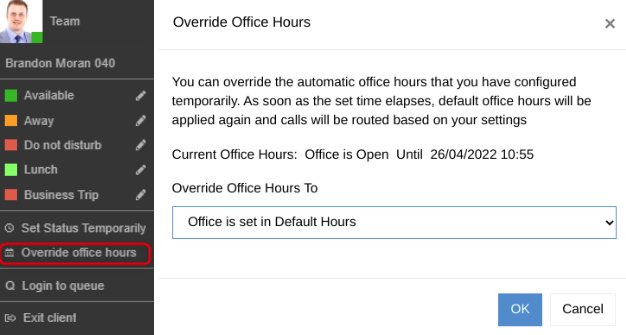
1. Click on your avatar. You need to have either the **“Receptionist”** or **“Manager”** role on 3CX.
2. Select **“Override office hours”**.
3. Use the drop-down to select one of the pre-set statuses or create a **“Custom”** one, and choose the duration.
4. One of the options is to play a prompt and end the call: **“Play announcement and end call”**. This can be useful in case of emergency or training.
5. Click **“OK”**.
6. Now it will show until when the override is in effect. After the time elapses the default office hours will come into effect again.
## Step 6: Advanced Digital Receptionist
Outgrown the basic IVR menu? Then you can create advanced digital receptionists with many more options! You will need to do this if you want to allow the caller to choose from a list of options, for example sales or support.
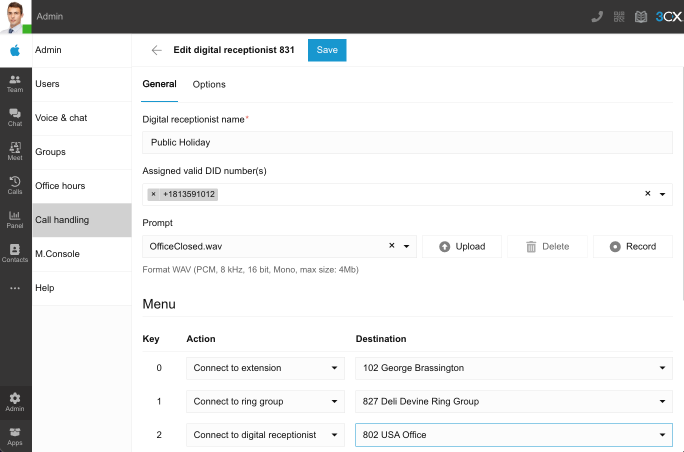
To create a digital receptionist:
1. Go to **“Admin > Call handling”**
2. Click **“+ Add digital receptionist”**
3. Give your new digital receptionist a name like **“Public Holiday”**
4. If you want to assign a DID to this IVR so calls go directly to this IVR, you can do so under **“Assigned valid DID number(s)”**. If you do this, then the calls will skip the office hours function and all calls will ALWAYS be routed to this DID.
5. Upload or record your greeting. Something along the lines of **“Thank you for calling XYZ, press 1 for sales and 2 for support”**. Some tips:
1. Do not use reserved characters (< > : " / \\ \| ? \* &) in the prompt filename.
2. If you are going to pre-record your announcement, do so in the format PCM, 8 kHz, 16 bit, Mono. In Windows Sound Recorder you must use the **“Save As”** option to save to this format. Do not use MP3 format. You can use our [audio convertor tool](https://audioconverter.3cx.com/audio-converter).
3. Announce the number the user needs to press after the option, i.e. ‘For sales, press 1’.
6. Select the desired destination for each digit.
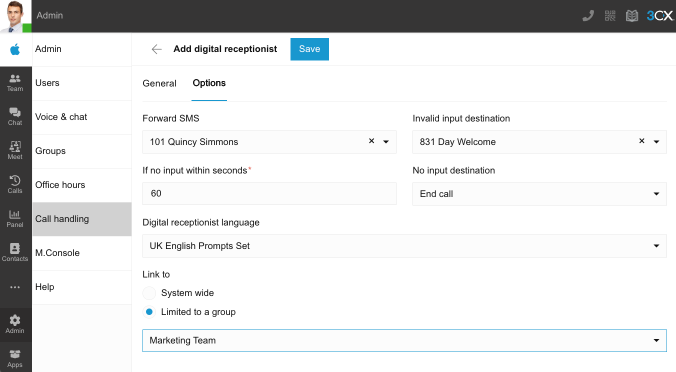
7. In the options tab you can select a number of options such as a different prompt language or alternative route for SMS messages sent to this number.
8. Click **“Save”**.