# Configure Your Office Hours & Holidays
## Configure Office Hours
[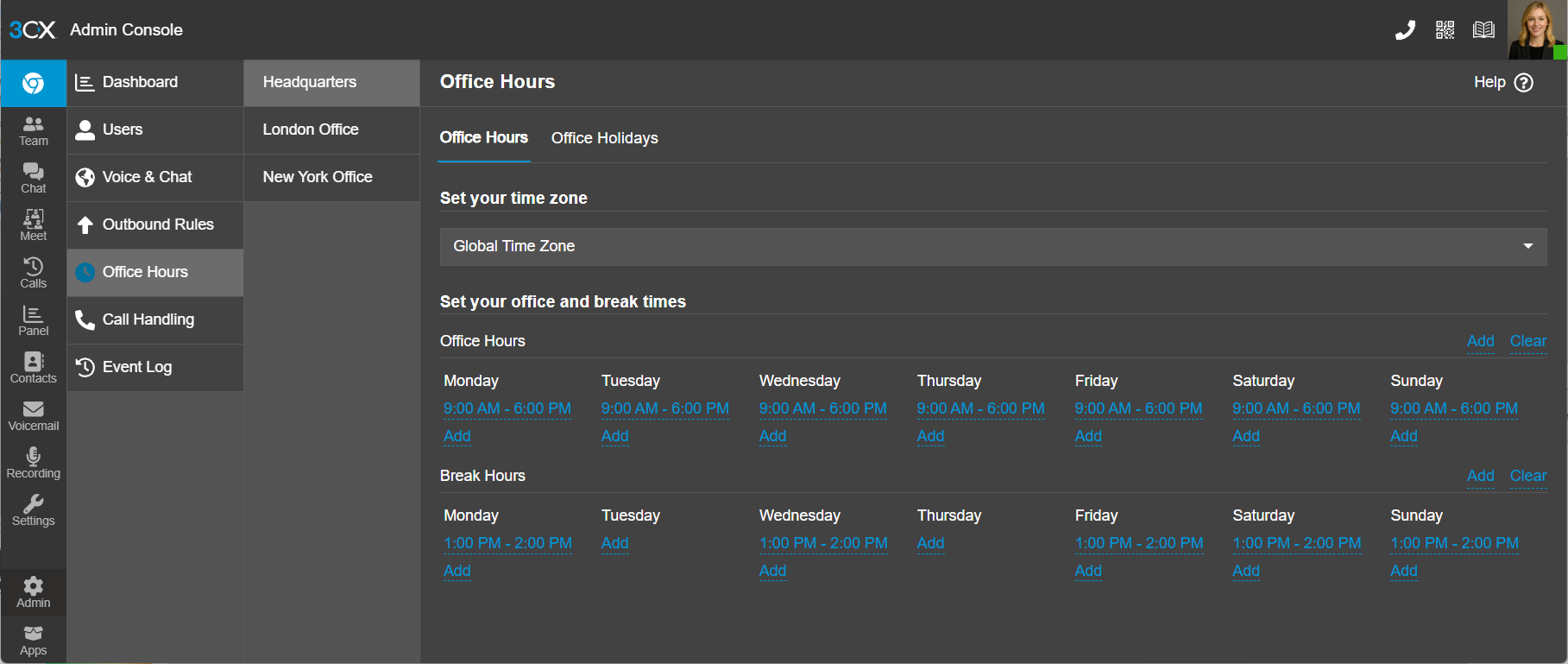](https://info.voxtandem.com/uploads/images/gallery/2026-05/2cuVXyTceMfohwRl-244b41e1-5fa8-44b1-99ec-73d988046b97.png)(Configuring Office Hours in 3CX Admin Console)
To configure your office hours:
1. In the 3CX Admin Console go to **“Office hours”**. Select the department you want to configure the office hours for. (3CX FREE/SMB don't have departments so you can skip this step).
2. Click on the days and specify your opening hours.
3. Add any breaks.
4. Use the **“Add”** and **“Clear”** button for each section to add or remove times for every day of the week in one single bulk action.
5. If this group is in a different time zone, set the time zone at the bottom of the page.
6. Repeat this process for each group.
## How to Update and Maintain a Holiday Schedule in 3CX Version 20
These instructions explain how to update and maintain holiday schedules in **3CX Version 20 (V20)** so your phone system handles calls properly during holidays and office closures.
---
#### Accessing Holiday Settings
1. Log into the **3CX Admin Console**.
2. From the left-side menu, select:
**Admin → Office Hours & Holidays**
3. Click the **Holidays** tab.
---
#### Adding a New Holiday
1. Click **Add Holiday**.
2. Complete the following fields:
#### Holiday Name
Enter a descriptive name such as:
- Christmas Day
- Thanksgiving
- Independence Day
---
#### Date
Choose the holiday date.
#### Recurring Holiday
Enable **Repeat yearly** if the holiday occurs on the same date every year.
Examples:
- Christmas → yearly recurring
- New Year’s Day → yearly recurring
For floating holidays like Thanksgiving, update them manually each year.
---
#### Applying Holidays to Office Hours
In Version 20, holidays work alongside office hours.
Verify that:
- Office Hours are enabled
- Your inbound rules use office hours routing
- The holiday schedule is assigned globally or to the appropriate department
To verify:
1. Go to:
**Admin → Office Hours & Holidays**
2. Confirm the holiday appears in the active holiday list.
---
#### Editing an Existing Holiday
1. Navigate to:
**Admin → Office Hours & Holidays → Holidays**
2. Click the holiday you want to update.
3. Modify:
- Name
- Date
- Recurrence
- Routing destination
- Greeting
4. Click **Save**.
---
#### Deleting a Holiday
1. Open the holiday list.
2. Select the holiday.
3. Click **Delete**.
4. Confirm deletion.
---
### Best Practices for Maintaining Holiday Schedules
#### Review Holidays Annually
At the beginning or end of each year:
- Confirm all holidays are entered
- Update floating holidays
- Remove outdated entries
---
#### Commonly Missed Holidays
Many organizations forget to include:
- Christmas Eve
- New Year’s Eve
- Black Friday
- Company shutdown days
- Emergency/weather closures
---
### Troubleshooting
#### Holiday Routing Not Working
Verify:
- The holiday date is correct
- The system timezone is correct
- Office Hours are enabled
- Inbound rules follow office hours routing
---
#### Calls Continue Ringing Normally
Check:
- The holiday is enabled
- The correct destination is selected
- The inbound rule points to the proper department or office hours profile
---
### Recommended Annual Maintenance Process
A simple yearly process:
#### Every December or January:
1. Review all holiday entries
2. Update variable-date holidays
3. Record updated greetings if needed
4. Test inbound call routing
This helps prevent missed calls and ensures callers receive accurate messaging during office closures.