# Firewall & Router Configuration
## Introduction
If you have 3CX installed on-premise you need to make changes to your firewall configuration to allow 3CX to communicate successfully with your SIP trunks and apps. This guide gives you a general overview of the ports that need to be opened/statically forwarded on your firewall.
If you have remote IP phones, you need to put an SBC or router phone in front of them. Alternatively we recommend the use of our apps which have an inbuilt tunnel.
## Ports required for your SIP Trunk / VoIP Provider
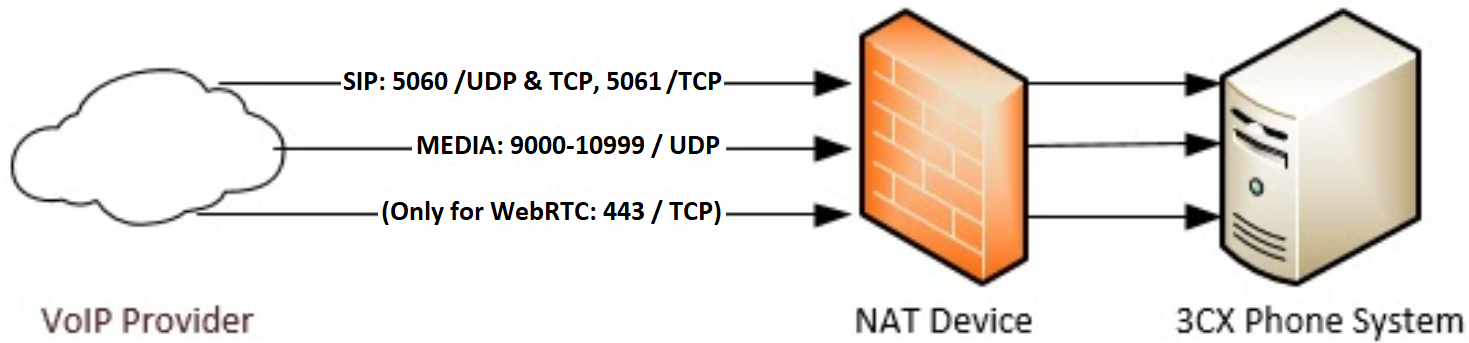
Open these ports to allow 3CX to communicate with the VoIP Provider/SIP Trunk and WebRTC:
- Port 5060 (inbound, UDP) and 5060-5061 (inbound, TCP) for SIP communications.
- Port 9000-10999 (inbound, UDP) for RTP (Audio) communications, i.e. the actual call. Each call requires 2 RTP ports, one to control the call and one for the call data, so the number of ports you need to open is double the number of simultaneous calls.
## Ports required for remote 3CX Apps & SBC
To allow users to use their 3CX apps remotely, on Android, iOS or Windows, you need to ensure that these ports are open:
- Port 5090 (inbound, UDP and TCP) for the 3CX tunnel.
- Port 443 or 5001 (inbound, TCP) HTTPS for Presence and Provisioning, or the custom HTTPS port you specified.
- Port 443 (outbound, TCP) for Google Android Push.
- Port 443, 2197 and 5223 (outbound, TCP) for Apple iOS Push. More information [here](https://support.apple.com/en-gb/102266).
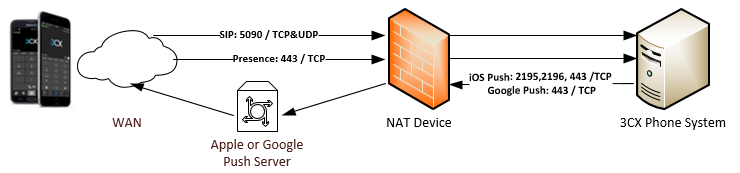
PUSH messages are sent by the 3CX System to Extensions using smartphones to wake up the devices for calls. This greatly enhances the usability of the smartphone apps.
## Ports required for 3CX Video Conference
To create and participate in web-based meetings, the 3CX-hosted cloud service must be able to communicate with the 3CX PBX and vice versa. To do so, these ports need to be configured:
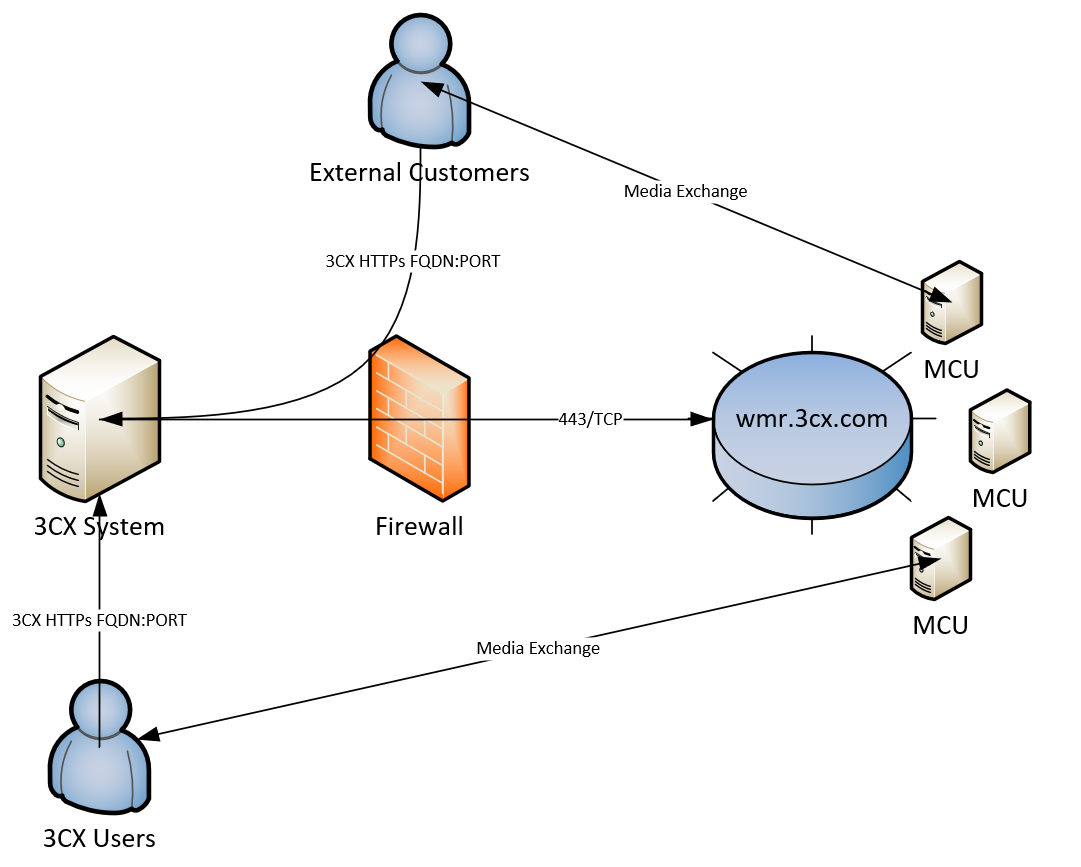
- Port 443 (inbound, TCP) must be allowed for participants to connect your 3CX System
- 3CX System: Port 443 (outbound, TCP) must be allowed to connect to 3CX’s cloud infrastructure
- Users: Port 443 (outbound, TCP) and 48000-65535 (outbound, UDP) must be allowed to exchange audio and video with other participants
## Ports required for Other Services (SMTP & Activation)
A 3CX System connects to various services provided by 3CX in the cloud.
- SMTP Service: Cloud Service for SMTP Messages
smtp-proxy.3cx.net, 2528 (outbound, TCP)
- Activation Service: Activation of 3CX Products
activate.3cx.com, 443 (outbound, TCP, uninspected traffic)
- RPS Service: Provisioning of Remote IP Phones
rps.3cx.com, 443 (outbound, TCP)
- Update Server: For updates of 3CX System and firmware of IP Phones
downloads-global.3cx.com, 443 (outbound, TCP)
## Configure Split DNS / Hairpin NAT
You will need to configure the 3CX FQDN to work both internally on your local network and externally outside of your network (unless you do not want to give access to your phone system from outside the network).
## Disable SIP ALG
Use a router/firewall without a SIP Helper or SIP ALG (Application Layer Gateway), or a device on which SIP ALG can be disabled.
## Run the Firewall Checker
After configuring your firewall, run the 3CX Firewall Checker to verify its configuration!
## Step by Step Instructions for Popular Firewalls
Example configurations for popular firewalls:
- [Configuring a Sonicwall Firewall for 3CX](https://www.3cx.com/docs/sonicwall-firewall-configuration/)
- [Configuring a Draytek 2820 Router for 3CX with QoS configuration](https://www.3cx.com/docs/draytek-firewall-configuration/)
- [Configuring AVM FritzBox as a Firewall with 3CX](https://www.3cx.com/docs/avm-fritzbox-firewall-configuration/)
- [Configuring a CISCO router to allow connection to a VOIP provider](https://www.3cx.com/docs/cisco-router-configuration/)
- [Configuring FortiGate 40F for 3CX](https://www.3cx.com/docs/fortigate-firewall-configuration/)
- [Configuring a WatchGuard XTM Firewall for 3CX](https://www.3cx.com/docs/watchguard-xtm-firewall/)
- [Configuring a pfSense Firewall for 3CX](https://www.3cx.com/docs/pfsense-firewall/)
- [Configuring MikroTik Firewall](https://www.3cx.com/docs/mikrotik-firewall-configuration/)