# Hot Desking
Hot Desking allows local or remote (via SBC) connected IP Phones to be used by multiple users, one at a time. A device currently not used by a user can’t make outbound calls, unless the number is defined as an **“Emergency Number”**. This way the extension is also protected, with the PIN protection feature, from dialing to unmonitored locations.
## Getting Started
To use Hot Desking a PRO or Enterprise license key is required.
To start using hot desking:
1. An extension must be allowed to use the pool of hot desking devices and
2. A device must be created as a hot desking phone. In order to do so, navigate to **“Advanced > Hotdesking”** function in the 3CX Management Console and press **“+ADD”**.
### Setting up a device to be used for hot desking:
1. Enter the basic details of the device, such as the MAC address and the provisioning method. If SBC is being used, define the IP and Port of the SBC the phone shall use in the remote office. In the **“Options”** section under the default settings define how the device will operate. Note that the option settings do not change to the user’s preferences when an extension roams onto the device.
2. Startup the device (from factory reset state) and provision the device using the Plug'n'Play (PnP) method outlined in the configuration guide for your device at [https://www.3cx.com/sip-phones/](https://www.3cx.com/sip-phones/).
3. Use the **“Assign Ext”** in the **“Phones”** function to process the PnP request and map to the corresponding hot desking extension number (format HDXXXX) that matches the MAC address of the device created in step 1. The device is provisioned and is ready to be used as a hot desking pool device.
4. Grant access to the extension(s) that need to use hot desking devices. Select the extension(s) (press the ‘Ctrl’ key to select multiple) and click **“Edit”** to enable the option **“Enable hot desking”** in the **“Options”** tab > **“Options”** section.
## Logging In
To log into a hot desking device the user dials \*77\*\[Extension Number\]\* (e.g. \*77\*100\*). The IVR service answers and prompts the user to enter their voice mailbox PIN number. Upon completion a confirmation prompt is played and the device is reprovisioned for the user’s extension.
**“Info”**: If the user hears **“file not found”** instead of the login prompt you need to update the system prompt set in **“Settings”** > **“System Prompts”** and update all installed and outdated prompts.
Note: If the hot desking device reboots after roaming to the device, update the device firmware to the latest 3CX supported firmware.
## Logging Out
To logout from a device the user needs to press the first available BLF button on the device, assigned on all hot desking devices to logout. User-configured BLF extension settings are shifted one position down to accommodate the logout button.
Alternatively, on a device without BLF buttons the user dials \*77\*5\* to logout.
Note: It is possible to roam directly from one extension to the next without logging out in between. While user A is currently on a device just reuse the login process to directly log into the next extension.
## Status
The current status of a device can be determined in two ways. Hot desking devices use an extension name as ‘HDXXXX’. If this is shown on the device display then the device is idle. When a user logs into the device via hot desking, the device displays the user's extension number.
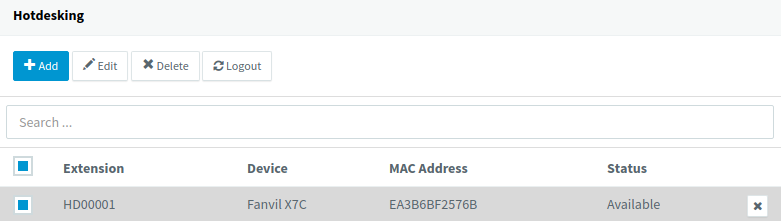
In the 3CX Management Console, the **“Hotdesking”** function shows device(s) status with currently logged-in users or idle. The administrator can force a user logout remotely by selecting the extension and clicking the **“Logout”** button in the **“Hotdesking”** function.
## Requirements and Limitations
- Custom templates cannot be used when using a device provisioned in hot desking mode.
- CTI is only tested and supported while using the 3CX web client. CTI in hot desking via the 3CX client is not supported and therefore cannot be used.
- To support best BLF layout with the configured settings in Web Client > "Settings" > "BLF Settings" on hot desking phones with variable number of BLFs:
- any empty BLF positions are discarded,
- all displayed BLFs are shifted down by the "Logout" button.
## Forbidden at Log-In
If the login call (\*77\*\[EXT\]\*) gets disconnected with the message **“forbidden”**, review the configured system dial codes in **“Settings”** > “Dial Codes" to ensure that no other dial code starts with \*7.