# Managing User / Agents’ Status in Queues
Call queues are used to better service incoming calls. Queue members are referred to as agents. Queues distribute incoming calls to agents according to the queue the caller has dialed into, which agents are available and if you have any forwarding rules. A single agent can be a member of multiple queues and they are able to log in and out of queues in various ways.
This guide will take you through the different ways of logging in and out of queues. When an extension is created, the default state of agents and their membership in queues is LOGGED IN.
## Global LogIn and Logout
The global queue toggle will add an agent to all queues in operative mode or remove them from service. However, it will NOT override explicit queue logouts.
### 3CX Web Client / Desktop App
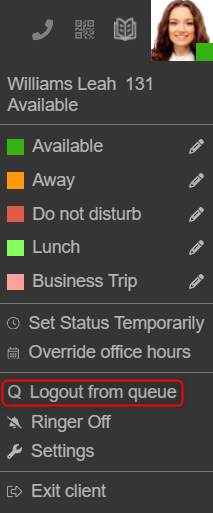
You can easily **“Login to queue”** or **“Logout from queue”** by clicking on your user profile in the top right corner of your web client. The option will be applied to all the queues you are a member of.
### Deskphone BLF button

Desktop IP phones do not have a **“Q”** button to log in or out of the queues. In this case you can use one of the phone’s configured BLF keys to login and logout. You will hear an audio confirmation that **“This extension is logged into the queue”**. You can also log out from the queues using a separate logout BLF button followed by an audio confirmation.
### Deskphone dial codes
Some IP Phones do not have BLF keys. In this case, you will need to use dial codes, which are provided by the PBX to log in and out of queues. The dial codes are defined in the 3CX Management Console and configured by the PBX Administrator.
- By default the dial code to log IN to a queue is \*62
- By default the dial code to log OUT of a queue is \*63
### Automatically based on the user’s profile status
An agent can be automatically logged in or out of queues, depending on the user’s profile status. For example, when the agent is **“Available”** the agent will be logged in to the Queues automatically. When the agent chooses **“Away”** or **“Do Not Disturb”** the agent will be automatically logged out from the queues.
### Automatically based on the time of day
The administrator can also configure a user’s status to automatically change based on the time of day and the queue status will change accordingly. The extension can either follow the office hours of the PBX or follow specific office hours defined for the extension. The extension can also have specific break times. The agent will then be logged in or out accordingly.
- During Office Hours, the extension will be in the **“Available”** state
- During Out of Office Hours, the extension will be in the **“Do Not Disturb”** state
- During Break Times, the extension will be in the **“Away”** state
## Explicit (Selective) LogIn and LogOut
An agent can choose which queue to join and they can be a member of more than one queue. In this case, the panel can be used to select which individual queues an agent will be logged in to.
### 3CX Web Client / Desktop App
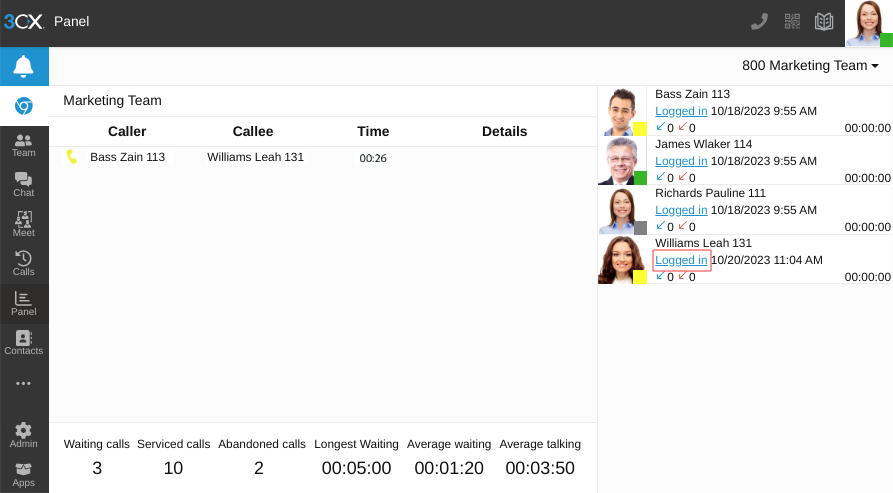
Use the 3CX Web Client/ Desktop App to log in and out of individual queues:
1. Go to **“Panel”**.
2. Select one of the available queues from the top right dropdown beneath your profile.
3. Click on the **“Logged in / Logged out”** indicator to login or logout of this queue.
#### Queue managers can login / logout on behalf of
The explicit login and logout can also be done on behalf of the agent, by the assigned queue manager(s). Agents who are not queue managers can only log themselves in and out of queues.