# The 3CX Android App: Work Remotely
The 3CX smartphone app for Android allows you to seamlessly take your office communications with you wherever you go. Access the company phonebook, make calls, answer incoming customer messages and more from the palm of your hand. There’s no need to use your personal mobile plan for business calls anymore.
## Setting up your Extension
If you haven’t already, [install the app](https://play.google.com/store/apps/details?id=com.tcx.sipphone14) from the Google Play Store.
1. Agree to the license agreement.
2. Allow 3CX to access the camera so you can provision your extension via QR code.
3. Scan the QR from your web client, desktop app or PWA.
4. Grant all the necessary permissions in the Permissions screen and you’re all set.
## Placing a Call with the 3CX Android App
Making a call with the Android app is quick and easy. In **“Contacts”** search by name, number or email address, click the phone icon next to the contact and hey presto! You’re now using your office phone system from your smartphone.
Once you’re in a call, you can seamlessly perform a number of actions, including:
1. **“Transfer”** will give you the option to **“Blind”** without the need for you to speak to the receiver, or **“****Attended”** will transfer the call after you first speak to the receiver to see if they accept the call and press **“Join”**.
2. **“Conference”** allows you to create an ad hoc conference call, adding more participants to join the conversation.
3. **“Rec”** allows you to record your conversation.
4. **“Video”** adds video to your call for face to face communication.
## Use Google Assistant to Make Calls
Ask Google to make a call using 3CX, be it by name e.g. **“OK Google, call James using 3CX”** or by number e.g. **“OK Google, call 101 using 3CX”**. When calling by name, the Google Assistant will try to find a person in your device’s contacts, to pass on to the 3CX App.
- If only one contact is found to have one number, the call is initiated immediately.
- If the contact has multiple numbers, the 3CX App will open the contact card for you to choose the number to call.
- In the case of several people with the same name, the 3CX App will filter all contacts by name for you to choose the correct contact.
To set up:
- Enable [Google Assistant](https://support.google.com/assistant/answer/7172657?hl=en&co=GENIE.Platform%3DAndroid) on your device.
- Ensure both the device and Google assistant region are set to **“English (US)”**.
- Install the 3CX App with an active account.
## How to Schedule a Video or Call Conference
Create a video or call conference in seconds with the Android App:
1. Tap on the menu  button in the top left corner and select **“Schedule”**.
2. Add your Subject then choose a date and time to schedule your conference.
3. If you are creating an audio conference you will see a **“PIN”**
4. If you are creating a video conference then you have to enable the **“Video”** option.
5. Choose whether you want to create a calendar event and proceed to **“Add 3CX Contacts”**.
6. Tap **“Next”** and a new calendar entry or a pop up to share the meeting will open.
7. Tap **“Done”**.
Note:
- Once the conference is created you cannot alter the participants.
- You can share it via the available apps provided on the screen such as Viber, WhatsApp, Bluetooth and more.
- To join a video conferencing from your Android smartphone you will need to have the [3CX Video Conference App](https://play.google.com/store/apps/details?id=org.tcx.webmeeting&hl=en&gl=US) installed.
## Create an Ad-hoc Conference
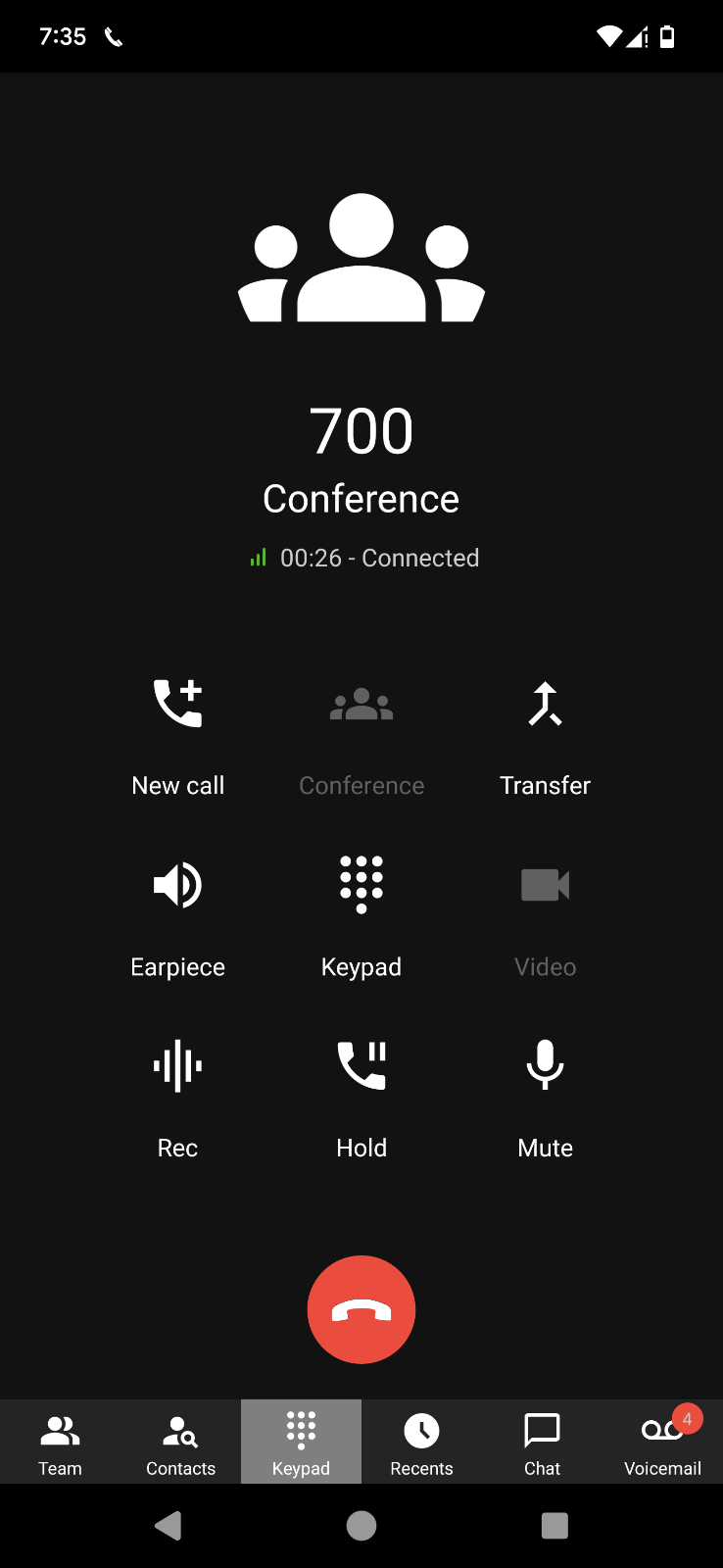
You can effortlessly add participants from the onscreen options during an ongoing call.
To elevate a call to an audio conference simply:
1. Click the **“Conference”** button on the dialpad.
2. Search for who you want to add to the call by name or extension, or enter their phone number.
3. Tap to call. They will be automatically dialed and added to your call.
See our [Video Conferencing chapter](https://info.voxtandem.com/books/how-to-guides/page/creating-an-audio-or-video-conference) on how to create a video conference from your smartphone.
## Set your Status and Avoid Distractions
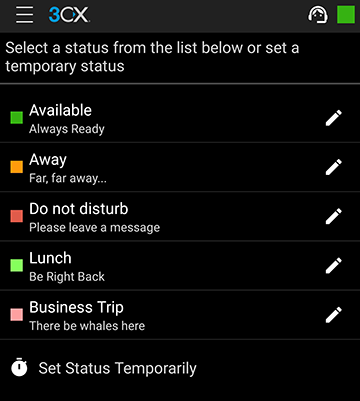
Using the Status feature will let your colleagues know if it’s OK to call you, saving you from being distracted and them from wasting time.
Choose from Available, Away, Do Not Disturb, Lunch, Business Trip, and Set Status Temporarily.
You can further customize your status and call forwarding rules by entering the status profile menu.
## Customize your 3CX App
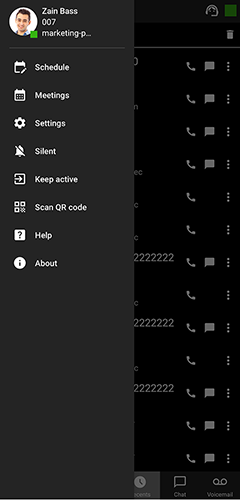
Personalize your app experience to suit your preferences in the Advanced Settings, which offer a number of options including Car/Bluetooth Support, Silence Detection, Battery Optimization and Ringtone customization.
To access Settings, simply press the menu icon at the top. From here you can also:
- Add, edit and switch between accounts
- Choose your theme
- Configure audio options
- Request a new Welcome Email.
## Having problems receiving calls?
You could be experiencing issues with PUSH notifications. Follow the [3CX Android PUSH Troubleshooting guide](https://www.3cx.com/docs/android-push-troubleshooting/) for help on how to fix this.