# The 3CX iOS (APPLE) App: Work Remotely
## Your office anywhere
Whether you choose to work remotely from home, by the pool or at your neighborhood cafe; the 3CX iOS app lets you take your office extension along for the ride! Apart from call and contact management, you can also chat with colleagues and customers via WhatsApp, Facebook, SMS and website live chat as well as hold a video conference - all from the palm of your hand.
## Step 1: Install the iOS app
1. Install the iOS app from the [App store](https://apps.apple.com/us/app/3cx/id992045982).
2. Open the app, read and accept the license agreement and authorize the permissions the app needs (camera, microphone).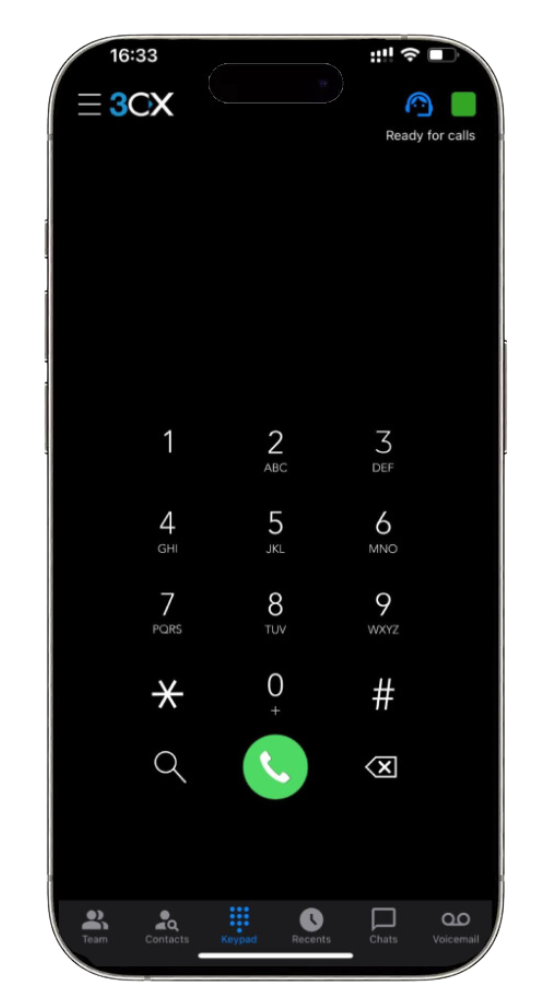
## Step 2: Configure your Extension: Scan the QR code

1. Open your web client or desktop app and click on the QR code in the top right corner.
2. Open your camera on your iOS device and scan the QR code shown on your screen.
3. Your extension is configured and you’re now **“Ready for calls”**!
## Making a call
Using the iOS app to make a call is as straightforward as making a call from your smartphone’s native call function.
- Enter a number via the dialpad and press call.
- Tap on the option from the menu and search contacts by name, extension number or email address. Or tap on a contact and select **“Call”**.You can easily perform a number of actions on an active call:
1. **“Transfer”** allows you to perform two types of transfers.
1. **“****Blind Transfer”**- transfer the call directly without addressing the receiver.
2. **“Att. Transfer”**- first speak to the receiver and then transfer the call.
2. **“Conference”** - add more participants to the call.
3. **“****Record”** - record the conversation.
4. **“Video”** - take your call up a notch by turning it into a video call.
5. **“New call”** - places the current call on hold to make a new one.
## Ask Siri to make a call
Use Siri to make a call using 3CX, be it by name e.g. **“Siri call James using 3CX”** or by number e.g. **“Siri call 101 using 3CX”**:
- Ensure your device has Siri enabled. If not, go to **“Settings”** > **“Accessibility”** > **“Siri”**.
- On your first request, Siri will ask permission to access 3CX data – tap **“Yes”**.
- Siri will launch the 3CX app and make the call.
- Launch the 3CX app at any time by saying: **“Siri, open 3CX”**.
- In the case of several people with the same name, Siri will prompt you to choose which number you want to call.
## Speed dial WidgetQuickly make calls using the 3CX Speed dial widget from your iOS screen.
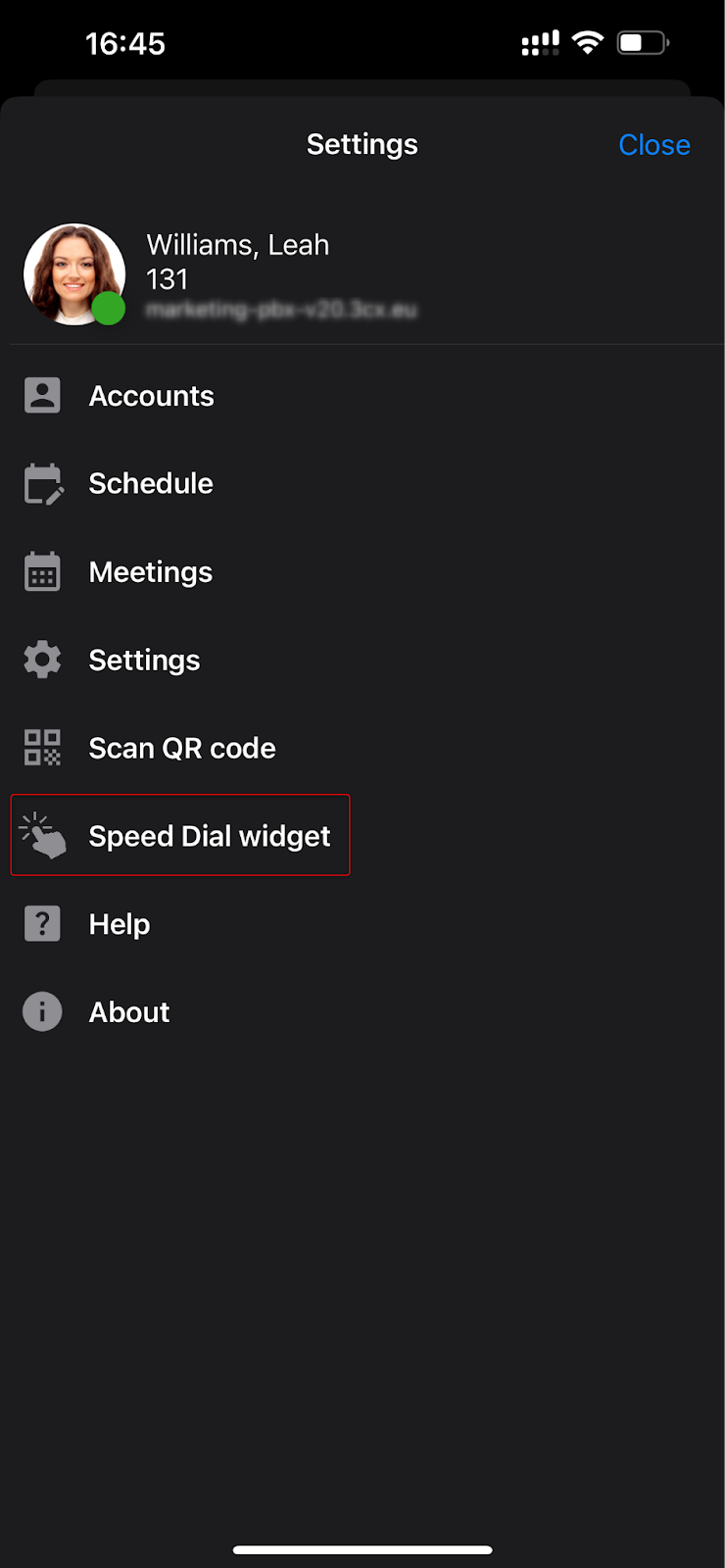
1. Tap on the  menu in the top left corner.
2. Select the **“Speed Dial widget”**.
3. Choose 1 of the 3 view options:
1. Buddies: Add up to 20 contacts and quick access to **“Missed calls”** and **“Messages”**.
2. Cards: Add up to 10 contacts in a 2-column list.
3. List: A list of the 5 most used contacts.
4. Add your extensions by tapping on the empty slots and selecting the contacts you want to include.
5. Once done, press the **“Settings”** to go back.
6. Go to your iPhones home screen and long-hold anywhere on the screen until your apps start **“shaking”**. Press on the **“+”** option in the top left corner.
7. In the search bar, search for **“3CX”**.
8. Tap on **“Add Widget”**.

9. The widget will now appear on the top of your home screen.
## Schedule a video / audio conferenceWith the iOS app, it's quick and easy to create an audio or video conference and invite participants. To schedule an audio conference call:
1. Tap on the menu  button in the top left corner and select **“Schedule”**. Allow 3CX access to your calendar.
2. Add the subject and set the date and time of your conference. To create a video conference enable the **“Video”** option.
3. The **“Add to Calendar”** option will create an event in your device’s calendar. If you don’t want to add the conference to your device’s calendar, disable this option.
4. Tap **“Save”**.
5. A new screen will appear called **“New Event”**.
6. Tap on the **“Invitees”** option to add participants.
7. Tap **“Done”** when all participants are added. Once the conference is created you cannot alter the participants.
8. Tap on the **“New Event”** option in the top left corner.
9. Adjust your conference settings from here such as alert, repeat, attachments and any notes.
10. Click **“Add”** in the top right corner when you’re finished.
11. Your conference is now scheduled and your Invitees will receive an email with details.
12. View all your scheduled conferences from the menu under the **“Meetings”** tab.
To join a video conference from your iOS device the [3CX Video Conference App](https://apps.apple.com/us/app/3cx-video-conference/id1039756959) must be installed.
## Create an ad-hoc conferenceAdd participants to an ongoing call to create an ad-hoc conference.
1. During a call tap on the option on the dialpad.
2. Search for who you want to add to the call by name or extension, or enter their phone number.
3. Tap the contact or **“Call (Number)”**of the person you want to add. If only one number is assigned to the contact, this number will automatically be dialed and added to your call.
### Elevate a call to a video
- During an audio call you are able to easily switch to video by simply clicking on the video icon .
- The person on the other side will receive a notification that you are requesting video and can choose if they also want to share their video with you.
- It is not possible to elevate an audio conference to a video conference.
## Share your availability with Status
The status feature is a great way to inform your colleagues whether they can call you. This enables you to create a distraction free zone and it also helps your colleagues handle calls more efficiently.
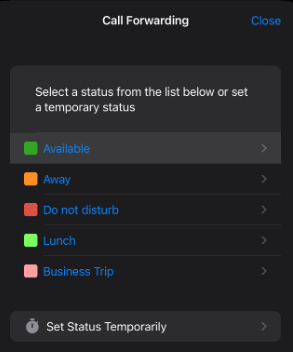
- You can find your status options by tapping on the green box in the top right corner.
- Choose from Available, Away, Do Not Disturb, Lunch, Business Trip and Set Status Temporarily.
- Customize your status and configure forwarding rules by pressing on the arrow next to the status.
## iOS app menu
From the menu  you can:
- Switch between accounts or add a new extension.
- Schedule conferences and view upcoming meetings.
- Access your **“Settings”** from where you can:
- Edit your notification sounds
- Divert emergency numbers to GSM
- Manage device integrations
- Re-provision
- Request for account credentials to be resent
- Troubleshoot
- Scan your QR code from the web client.
- Access the speed dial widget.
- Get help
### Managing 3CX Calls in iPhone RecentsThis setting uses Apple CallKit integration. Turning it off removes the integration with the native iOS call history. Older entries may still remain in "Recents" until manually cleared.
1. Open the **3CX app** on iPhone
2. Tap the **menu icon** (top-left)
3. Go to **Settings**
4. Find **“Integrate with Device Recents”**
5. Toggle it:
- **ON** = 3CX calls appear in the native iPhone Phone app Recents/call history
- **OFF** = 3CX calls stay only inside the 3CX app history and no longer appear in the iPhone Phone app Recents list