# 3CX Chat User Guide

## Manage Customer Queries from Live Chat, WhatsApp, Facebook and SMS/MMS

The 3CX chat feature doesn’t only allow employees to chat and share files with each other, it also enables customer service agents to easily respond to queries sent via live chat, WhatsApp, Facebook and SMS/MMS. All from the same user-friendly interface.

<figure class="wp-block-embed is-type-video is-provider-vimeo wp-block-embed-vimeo wp-embed-aspect-16-9 wp-has-aspect-ratio" id="bkmrk-"><div class="wp-block-embed__wrapper"><iframe allow="autoplay; fullscreen; picture-in-picture" allowfullscreen="allowfullscreen" frameborder="0" height="360" src="https://player.vimeo.com/video/722145146?h=5949f76a1f&dnt=1&app_id=122963" title="Manage live chat, Facebook &amp; SMS from the 3CX Web Client" width="640"></iframe>

</div></figure>## <span class="c5 c21">Receiving chat</span><span class="c16 c5"> messages</span>

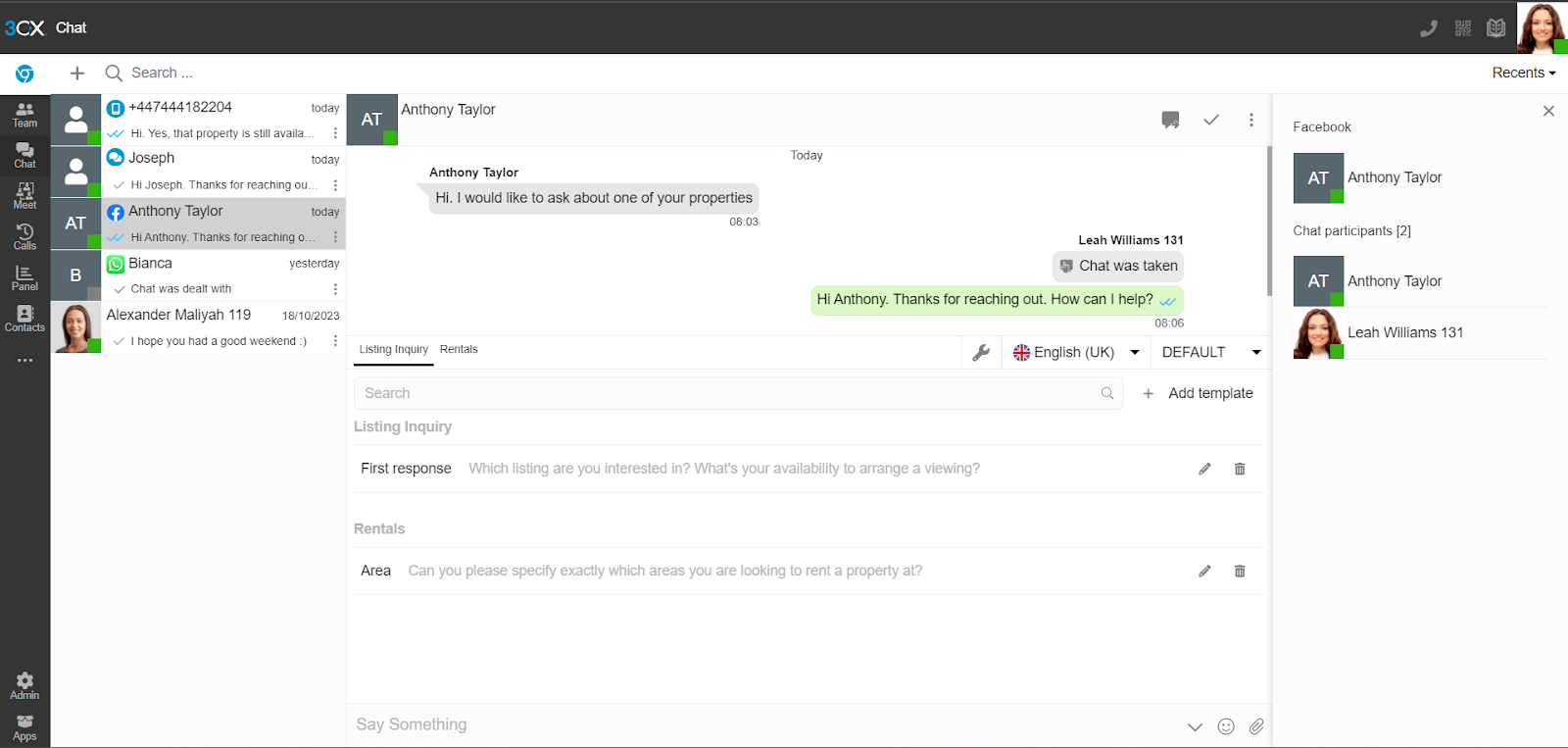
Incoming chat messages will be routed to specific queues or extensions. The type of chat conversation is highlighted by a specific icon; Website live chat ![live chat icon](https://lh7-us.googleusercontent.com/7pMGY3bvRSzpfxc8qsJsMIx_U4CTxEUP25a9FJoFOA3-rJYWI2xra39CaAr2hKNFB4lSyBqvFAmwStW2-FP3lPyyhCegdCPVO4g8f6mae_7egHoK_p-E1gr-DfNmyvDq_utRQ_IZv6fN9ZI "live chat icon"), WhatsApp ![](https://lh7-us.googleusercontent.com/J2bZkktSnzy7PIh-EFGKsjxK7JJzmvJwR08_u_NNueKApvUslIP5w9QkcYw5W6beKPk4bZkgIvkX8XcbiwNEOjF_yIZVBiHVjosUSk6Yb7N5IC9mDrpLYLCLOmY45wRVQjuMa71mEcwZP1W9) , Facebook![Facebook icon](https://lh7-us.googleusercontent.com/Ase6rG8jhJ-At3J2PLjlDcJOrltl9n4kvpn4ie9Yfsfr06BAuDaDOeAfCw7EIY-Z76xKalS-5I6k145EAslXKJ7ZFyKg24z6i9osMSM2VoILFOlk5Vj6voP5XGrrg5robdEh8Qp3EgC75YY "Facebook icon")and SMS/MMS ![SMS icon](https://lh7-us.googleusercontent.com/VwP1Zvt1VWowglsvrH6q_Zy4yyqfHEWNIYr7jQV8jOBvJsOqak9UDvJiFvRsyke2rbNlnfWMAI6ZXVol8VoXGNre6HQyFfw74m6sP8QPxcLd5EgqzGVDvfL8S8pSN_oqAHTPJBJCB3wiOo8 "SMS icon")<span class="c1">. Internal chat messages are not specified by any icon.</span>

![](https://lh7-us.googleusercontent.com/uSoiXM6tcCAlacSOcVVZ2BQHcarcWm96E79zFWd15IST6aRgkl7V6eSiNB8ad2CIhqHEg1ZrbByBnwer8JoL6k4_SDGPInrP5hD-LoHYZK4forqD4taQMpr7v0EBwYZtfO6QFeSgZzfSLZ8N)

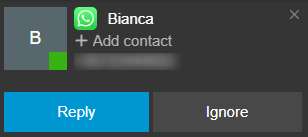
<span class="c1">If an unknown contact sends a chat you will be prompted to **“Add contact”**, **“Reply”** or **“Ignore”**.</span>

<span class="c1">Chats are visible to all agents who are in the assigned queue. The administrator can configure the polling strategy of the queue (e.g. the first agent to answer a chat, the top 3 agents, etc).</span>

<span class="c1">Any agent can respond and see ongoing conversations until one agent takes ownership. As soon as an agent responds to an incoming chat, the chat automatically becomes theirs and no other agent can respond or see the conversation. Alternatively, do this:</span>

- Click on the chat conversation, then click on the **“Take”** ![take icon](https://lh7-us.googleusercontent.com/AbiwmOEjGW1nmcMTcB6RR-HFLLYwPRhcWpAsIhO89bXWWm5HUCRz-9dPQtSYkwBFbXrB8XbKLtz7aTsWLxOYdPEvmx8chWikiv6SteVQqb6S5dPjWHDRNAYrKMqzXRq--IJ1Ns7Mf0jNWOM "take icon")<span class="c1"> icon in the top right corner. You are now the owner of this conversation; other agents no longer have access to it. </span>

## <span class="c16 c5">Use quick response message templates</span>

Respond to any chat message including live chat, WhatsApp, Facebook<span class="c1"> &amp; SMS faster with message templates.</span>

![](https://lh7-us.googleusercontent.com/ZU3P7vrAEtVQPp54_RbmwXy-oXX5vPwJHcBS6tc8EWSfSvTLL1yAPpzWANtcnuyC1mmYRUkq-SM9vknq6rFcvpzy7Y3xJT7neOqwr0I9WKV8PYDwlfqt_5naKvOy-0bK-M8izYeQy-Ga9VzG)

1. Click on the templates icon ![](https://lh7-us.googleusercontent.com/GfA3rRBDKMWqKs8aY55kmmlo6jaUi46DPeN_faFbfNCxJ6scsD9F-EjJWc2PdfxknyJHMTsbMlbpSX88o7yJovlqPQjsSh51XsqSJOfUibeNRK_1uNFteP0cxL-ApL9xuRSXFQorHndxr1QG), in the bottom left corner of the chat panel to expand the templates. Only Managers, Group Owners and System Owners have the rights to manage chat templates.
2. Use the search bar, categories tabs or language drop-down option to filter the templates.
3. Click on a template and the text will automatically populate in your reply panel for you to edit or send.

## <span class="c16 c5">Transferring a chat</span>

Y<span class="c1">ou may decide that the issue needs handing off to another agent.</span>

1. While in a chat, click the <span class="c5">**“Transfer”**</span> ![transfer button](https://lh7-us.googleusercontent.com/0T098Bu15fAckK5SY9L2rW8simu_Its5P7BoAGtvguYNoQcdXoJRLmb4XgGuwSgt_UprvmF2HVm1TtWgBP8lQC3sd60Ok1cujGcujT8SdUQIGpWh61FyEUkqzFi6SUT9GfTMR7cCNp3iVTE "transfer button") button in the top right.
2. <span class="c1">Search the agent you want to transfer the chat to by name or extension number.</span>
3. <span class="c1">Click on the extension and the chat will be transferred. You are no longer able to view the conversation.</span>

## <span class="c16 c5">Additional actions</span>

<span class="c1">There are various chat actions available to help you efficiently manage your conversations and gather additional details about customers.</span>

### <span class="c13 c5">View user information</span>

<span class="c1">Depending on the type of chat, you can view additional information.</span>

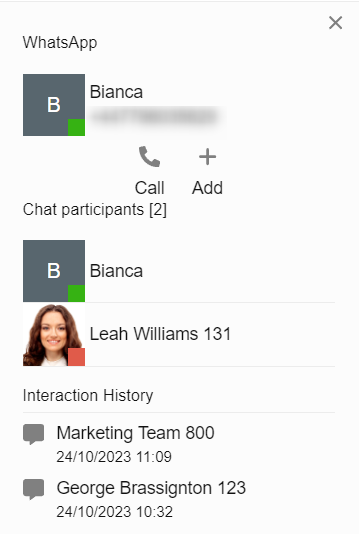
1. Click on the menu ![menu icon](https://lh7-us.googleusercontent.com/7VuGZ-LevEwO5Yuaqw72rH4fqAUA0LbCJwVXpPIiXe2PLGfWBy3GuXusD95l0SRB52OS_u7S0_Fy0klzhwtgSWyjwheQnEtfNzT633AAcZYTbRVLtrCxqIJ_NLHIW0gZa7B1AwYYjXtBEus "menu icon")<span class="c1"> button in the top right corner.</span>
2. Select <span class="c5">**“Information”**</span><span class="c1">.</span>

![](https://lh7-us.googleusercontent.com/4qNSEUB6ntl3Oo1knmMwV75EVmWcj0DD-vBJrOK6f2xO3dVcu2rxHTOGYbJ-1w-yVA1O_IUV4KNPJs1k-uym-p3cVLy0U7AevipE5MN5rFvE8CDwcCUsRo80YG9Lbs13E5g9nFZjZWbkj5i_)

3. <span class="c1">From here you can:</span>

1. <span class="c1">Email or add a live chat user as a contact.</span>
2. Call or add a WhatsApp user as a contact.
3. <span class="c1">Call, send SMS or add an SMS contact.</span>
4. <span class="c1">View the Interaction history of this user with all agents and departments.</span>

### <span class="c5 c13">Send images and files</span>

Send files by drag and drop or by clicking on the **“Attach document”** ![](https://lh7-us.googleusercontent.com/6ggJHO4bAPQ6wre_IBe5f7BnMyC_8r96oZdEA_H--qBAOHWG6w3NzPLIK5DVmuuciwSW1ylX2PUNTKYUichrLloS-7oGFu1koStuu4GruyrXOlotkE5rIy3lWY6Jh7VBg9SR1CkRhhcOwSA)<span class="c1">icon in the lower right corner. The following files are supported:</span>

- <span class="c5">Documents</span><span class="c1">: Acrobat (PDF), MS Office (DOC, DOCX, PPT, PPTX, XLS, XLSX), plain and rich text (TXT, RTF).</span>
- <span class="c5">Images</span>: JPG, PNG, GIF, BMP, WEBP, TIFF, and HEIF.

### <span class="c5 c27">Mark a chat as ‘Dealt with’</span>

Once a chat conversation (excluding internal) has come to an end, click on the **“Dealt with”** ![](https://lh7-us.googleusercontent.com/DERpESEJoSMG3CZJrmlTF_TRxjv6rSN2g1H0LpwIZGBVjnqrpLkvJ-uVT7V6XF6sbcibR_iFEwoC3dqLTaunXtEZ7nCw7V2zkHuYe4QoQPqtIuY-YgmQVV0Sp6aFbuQbnmFJoSFWj2Q9wIjl)<span class="c1">button to close and archive the chat session.</span>

If the chat is not marked as **“Dealt with”** and it has been **“Taken”** by an agent the next time the same customer sends a message, the new message will be delivered to the **“Taken”** agent’s inbox rather than following the configured routing to a group or queue.

### <span class="c5 c27">Block a user or e</span><span class="c13 c5">nd the chat session</span>

Only available for website live chat, <span class="c1">these functions will block a website user from contacting you via chat or close the chat session and notify the customer that the chat has ended.</span>

1. Click on the menu ![menu icon](https://lh7-us.googleusercontent.com/7VuGZ-LevEwO5Yuaqw72rH4fqAUA0LbCJwVXpPIiXe2PLGfWBy3GuXusD95l0SRB52OS_u7S0_Fy0klzhwtgSWyjwheQnEtfNzT633AAcZYTbRVLtrCxqIJ_NLHIW0gZa7B1AwYYjXtBEus "menu icon")<span class="c1"> button in the top right of the main chat window.</span>
2. Select <span class="c5">**“End chat session”**</span>.<span class="c1"> The user will be notified that the chat has ended.</span>
3. Select <span class="c5">**“Block anonymous user”**</span>. The user’s IP will be blocked and they will no longer be able to access website live chat.

## <span class="c5 c21">Resolve/Archive a chat</span>

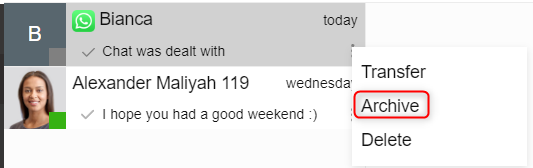
<span class="c1">Archiving a chat removes the conversation from the main or **“Recents”** view.</span>

![](https://lh7-us.googleusercontent.com/h2_sKxi26dp8pLUvxGP3HpfkaQPBWqQHnSgwOUfzzq_MFsJ8jndO4MAjt8sQivZz9NIVumEFU8K6Fmrl8NmkoZ21JA0JbwlsXxMDXDNLlaTeaf5dtx-Vk2m9HepiYwB1ngVtG7VB-uPBE6H_)

From the chat window, click the menu ![menu icon](https://lh7-us.googleusercontent.com/7VuGZ-LevEwO5Yuaqw72rH4fqAUA0LbCJwVXpPIiXe2PLGfWBy3GuXusD95l0SRB52OS_u7S0_Fy0klzhwtgSWyjwheQnEtfNzT633AAcZYTbRVLtrCxqIJ_NLHIW0gZa7B1AwYYjXtBEus "menu icon") and select <span class="c5">**“Archive”**</span><span class="c1">. The conversation will be removed from the main chat window. Access archived chats from the drop-down menu in the top right corner.</span>

When in the archived chats list, click the menu ![menu icon](https://lh7-us.googleusercontent.com/7VuGZ-LevEwO5Yuaqw72rH4fqAUA0LbCJwVXpPIiXe2PLGfWBy3GuXusD95l0SRB52OS_u7S0_Fy0klzhwtgSWyjwheQnEtfNzT633AAcZYTbRVLtrCxqIJ_NLHIW0gZa7B1AwYYjXtBEus "menu icon")<span class="c1"> next to each chat to:</span>

- <span class="c1">Transfer the chat</span>
- <span class="c1">Unarchive</span>
- Delete

## <span class="c16 c5">Chat settings</span>

Go to **“<span class="c5">Settings</span>”**<span class="c5"> </span>&gt;<span class="c5"> </span>**“<span class="c5">Chat</span>”**<span class="c1"> to configure:</span>

- <span class="c1">Show chat toaster - select to show chat toaster and/or web notifications</span>
- Play chat notification<span class="c1"> - enable and select a personalized notification sound.</span>

<span class="c5">Note</span>: Custom chat notifications are available only for the 3CX Web Client/ Desktop app and the 3CX iOS app.