
Configure Your Office Hours & Holidays
Configure Office Hours
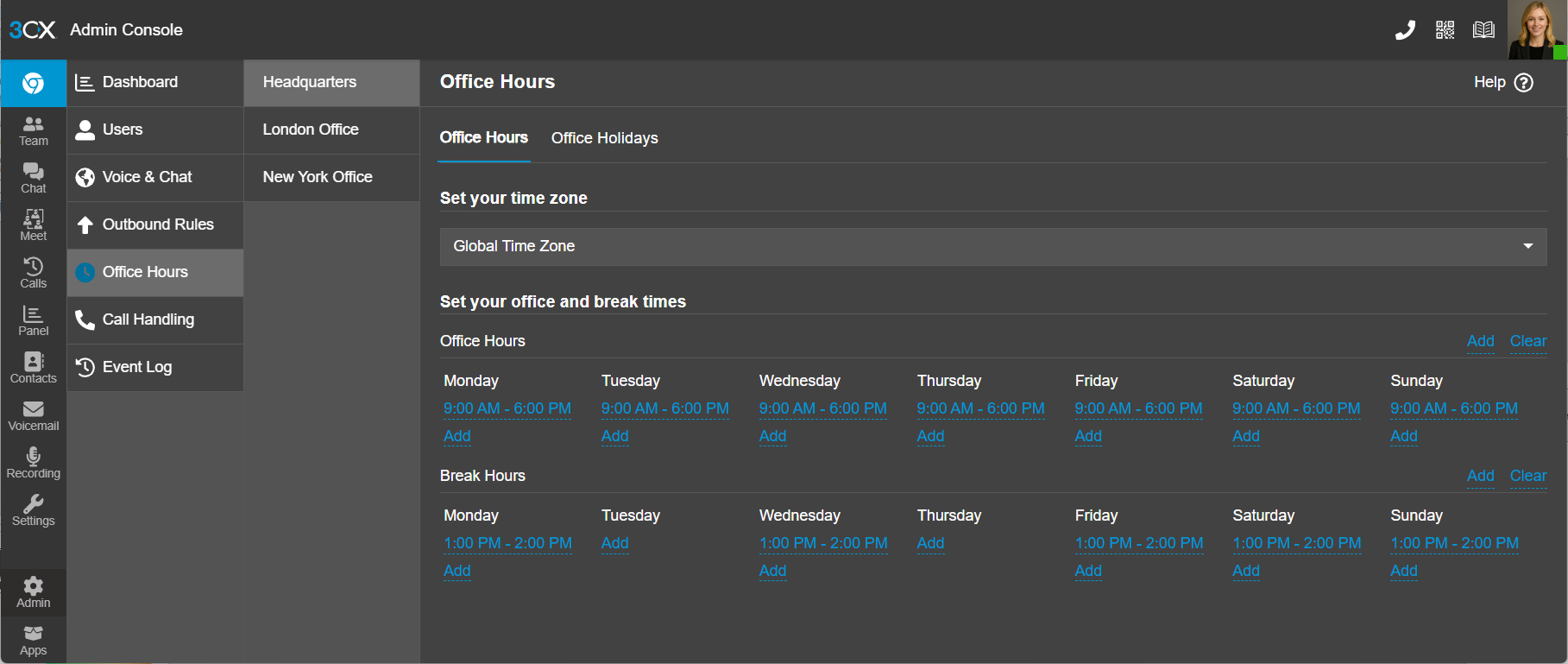 (Configuring Office Hours in 3CX Admin Console)
To configure your office hours:
- In the 3CX Admin Console go to “Office hours”. Select the department you want to configure the office hours for. (3CX FREE/SMB don't have departments so you can skip this step).
- Click on the days and specify your opening hours.
- Add any breaks.
- Use the “Add” and “Clear” button for each section to add or remove times for every day of the week in one single bulk action.
- If this group is in a different time zone, set the time zone at the bottom of the page.
- Repeat this process for each group.
How to Update and Maintain a Holiday Schedule in 3CX Version 20
These instructions explain how to update and maintain holiday schedules in 3CX Version 20 (V20) so your phone system handles calls properly during holidays and office closures.
Accessing Holiday Settings
- Log into the 3CX Admin Console.
- From the left-side menu, select:
Admin → Office Hours & Holidays
- Click the Holidays tab.
Adding a New Holiday
- Click Add Holiday.
- Complete the following fields:
Holiday Name
Enter a descriptive name such as:
- Christmas Day
- Thanksgiving
- Independence Day
Date
Choose the holiday date.
Recurring Holiday
Enable Repeat yearly if the holiday occurs on the same date every year.
Examples:
- Christmas → yearly recurring
- New Year’s Day → yearly recurring
For floating holidays like Thanksgiving, update them manually each year.
Applying Holidays to Office Hours
In Version 20, holidays work alongside office hours.
Verify that:
- Office Hours are enabled
- Your inbound rules use office hours routing
- The holiday schedule is assigned globally or to the appropriate department
To verify:
- Go to:
Admin → Office Hours & Holidays
- Confirm the holiday appears in the active holiday list.
Editing an Existing Holiday
Admin → Office Hours & Holidays → Holidays
- Click the holiday you want to update.
- Modify:
- Name
- Date
- Recurrence
- Routing destination
- Greeting
- Click Save.
Deleting a Holiday
- Open the holiday list.
- Select the holiday.
- Click Delete.
- Confirm deletion.
Best Practices for Maintaining Holiday Schedules
Review Holidays Annually
At the beginning or end of each year:
- Confirm all holidays are entered
- Update floating holidays
- Remove outdated entries
Commonly Missed Holidays
Many organizations forget to include:
- Christmas Eve
- New Year’s Eve
- Black Friday
- Company shutdown days
- Emergency/weather closures
Troubleshooting
Holiday Routing Not Working
Verify:
- The holiday date is correct
- The system timezone is correct
- Office Hours are enabled
- Inbound rules follow office hours routing
Calls Continue Ringing Normally
Check:
- The holiday is enabled
- The correct destination is selected
- The inbound rule points to the proper department or office hours profile
Recommended Annual Maintenance Process
A simple yearly process:
Every December or January:
- Review all holiday entries
- Update variable-date holidays
- Record updated greetings if needed
- Test inbound call routing
This helps prevent missed calls and ensures callers receive accurate messaging during office closures.